Compress an image to a target size on Mac
Shrink a photo to a target size without visibly hurting it.
A form says "max 2 MB". A website upload stalls on a 6 MB photo. An email of twenty pictures is suddenly too big to send. Compressing an image squeezes the file down — usually by lowering quality just enough that your eye can't tell — so it fits wherever it needs to go. The useful version of this isn't a vague "lower quality" slider; it's being able to say "get this under 500 KB" and have it land there.
The free way (if there is one)
macOS has no one-click "compress to this size" for photos. Preview can export a JPEG at lower quality (File → Export, quality slider), but you can't ask for a specific KB target and it works one file at a time.
Preview can export a JPEG at a lower quality for free, and for one image that's often enough. Fileknife helps when you have a real size target to hit, when you're compressing a whole folder, or when you want to switch to a lighter format while you're at it.
With Fileknife
Here's the same job in Fileknife, where it stays on your Mac:
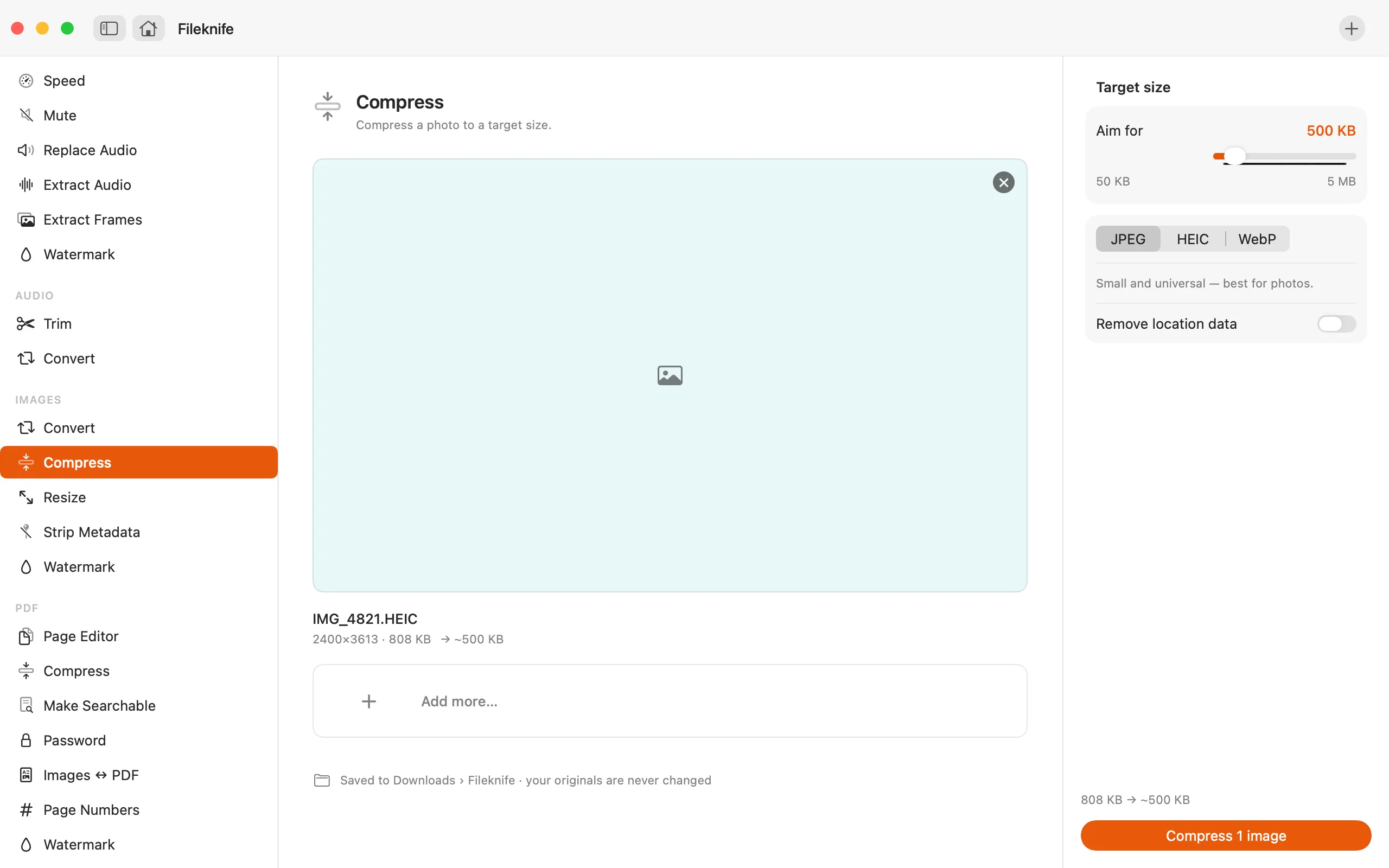
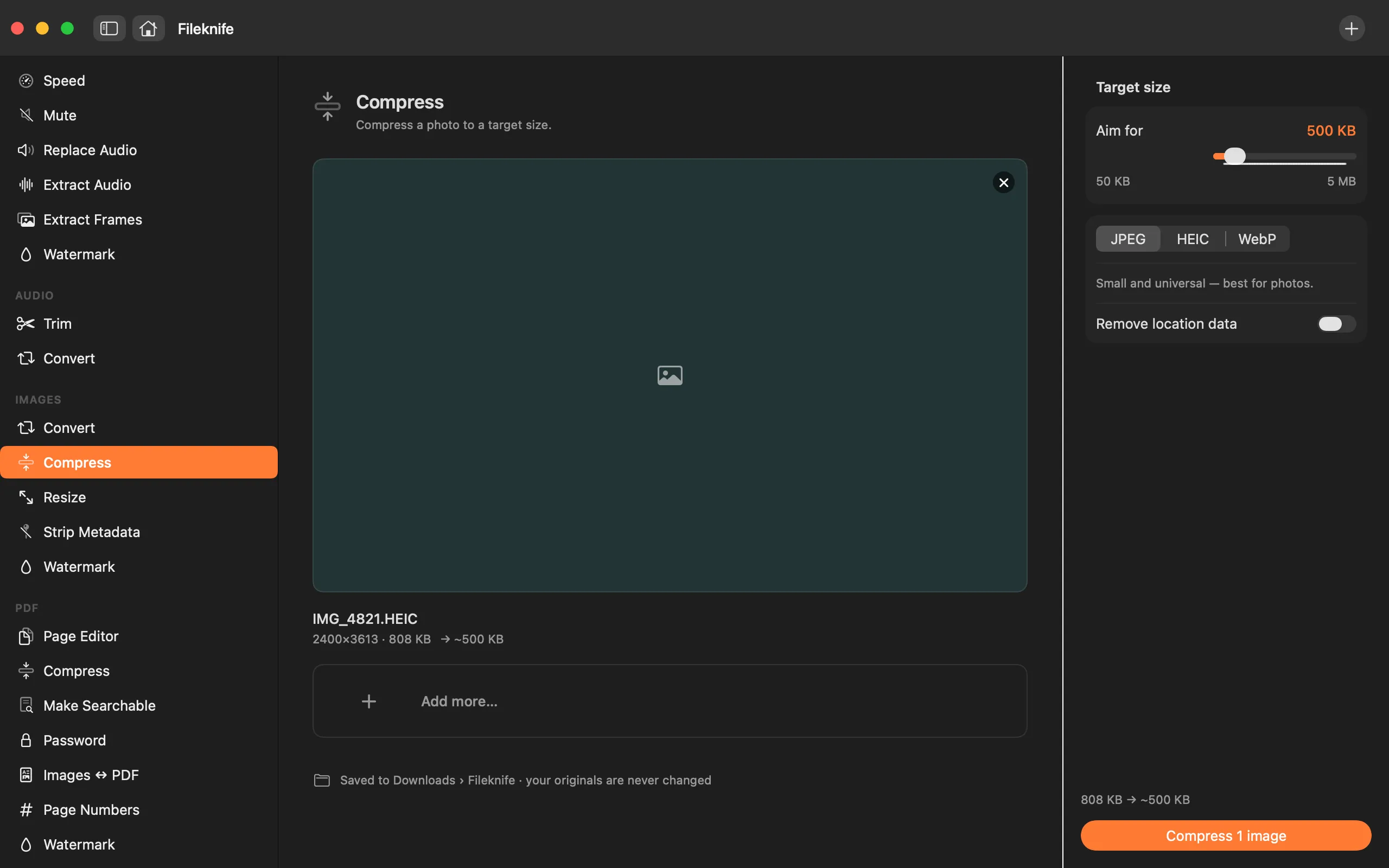
- Drop your photos onto Fileknife and choose Compress.
- Set a target size, or drag the quality slider.
- Optionally switch the output format (e.g. to WebP).
- Press Compress and check the before → after size.
Why reach for Fileknife
- Aim for a specific size (e.g. "under 500 KB") instead of guessing with a quality slider.
- Compress a whole folder in one pass.
- Keeps the format, or converts to a lighter one like WebP in the same step.
- Runs on your Mac, with no upload limit or queue like a web compressor.
Presets and options
- Target size (KB)
- Quality
- Web-ready
Takes: JPG, PNG, HEIC, WebP and other common image formats. Gives: Same format, or JPG / PNG / WebP.
e.g. a 6 MB photo → about 480 KB for a web upload (illustrative; varies with the image).
Honest limits
PNG with lots of flat colour compresses less than a photo; for photos, JPG or WebP usually reaches a smaller size at the same quality. Very aggressive targets will show visible artefacts — Fileknife shows the result so you can judge.
FAQ
What's the difference between compress and resize?
Compress keeps the same dimensions and squeezes the file. Resize changes the pixel width and height. You can do both at once in Fileknife.
Is anything uploaded?
No. Compression runs on your Mac.
Will I lose quality?
Compression always trades a little quality for size — that's the point. A light compression is invisible; a very small target starts to show. Fileknife shows the result so you can pick a level you're happy with before you keep it.
Be the first to know when it ships · No spam · macOS 14 Sonoma or later