Merge videos into one on Mac
Join several clips into one video.
You've got three clips that should be one: an intro, the main take, a sign-off — or a handful of phone videos from the same afternoon. Merging means playing them back to back as a single file, in the order you choose. The usual snag is mixed sizes and orientations: a portrait clip next to a landscape one, which a good merge tool fits onto one shared frame instead of squashing.
The free way (if there is one)
iMovie joins clips for free, but it's built around a full timeline project: you import, drag clips onto the timeline, then share. There's no quick "combine these files into one" in Finder or QuickTime.
iMovie joins clips for free and is the right tool when you also want titles, transitions or music. Fileknife is for the plain job — combine these files into one, in this order, on one canvas — without building a timeline project.
With Fileknife
Here's the same job in Fileknife, where it stays on your Mac:
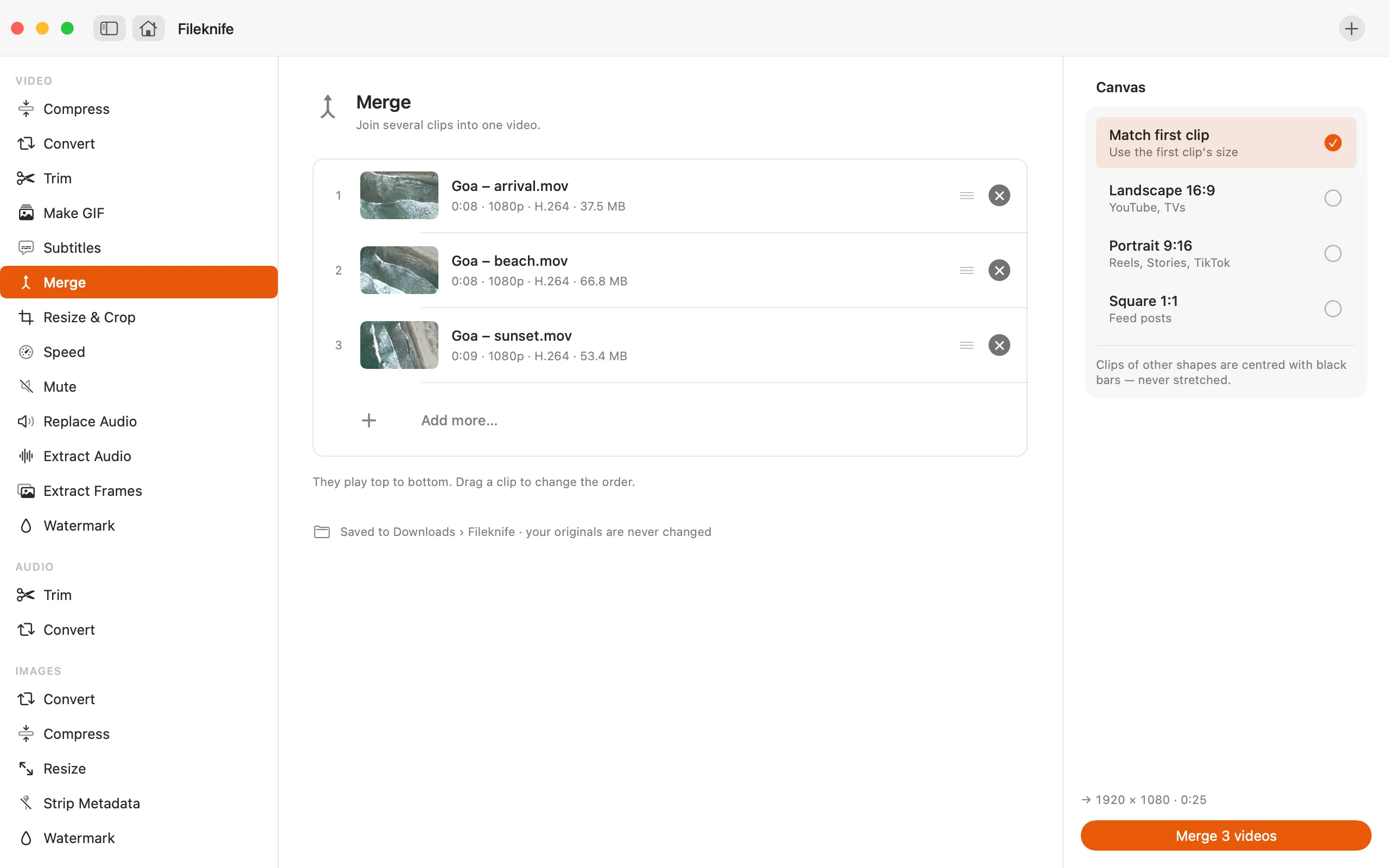
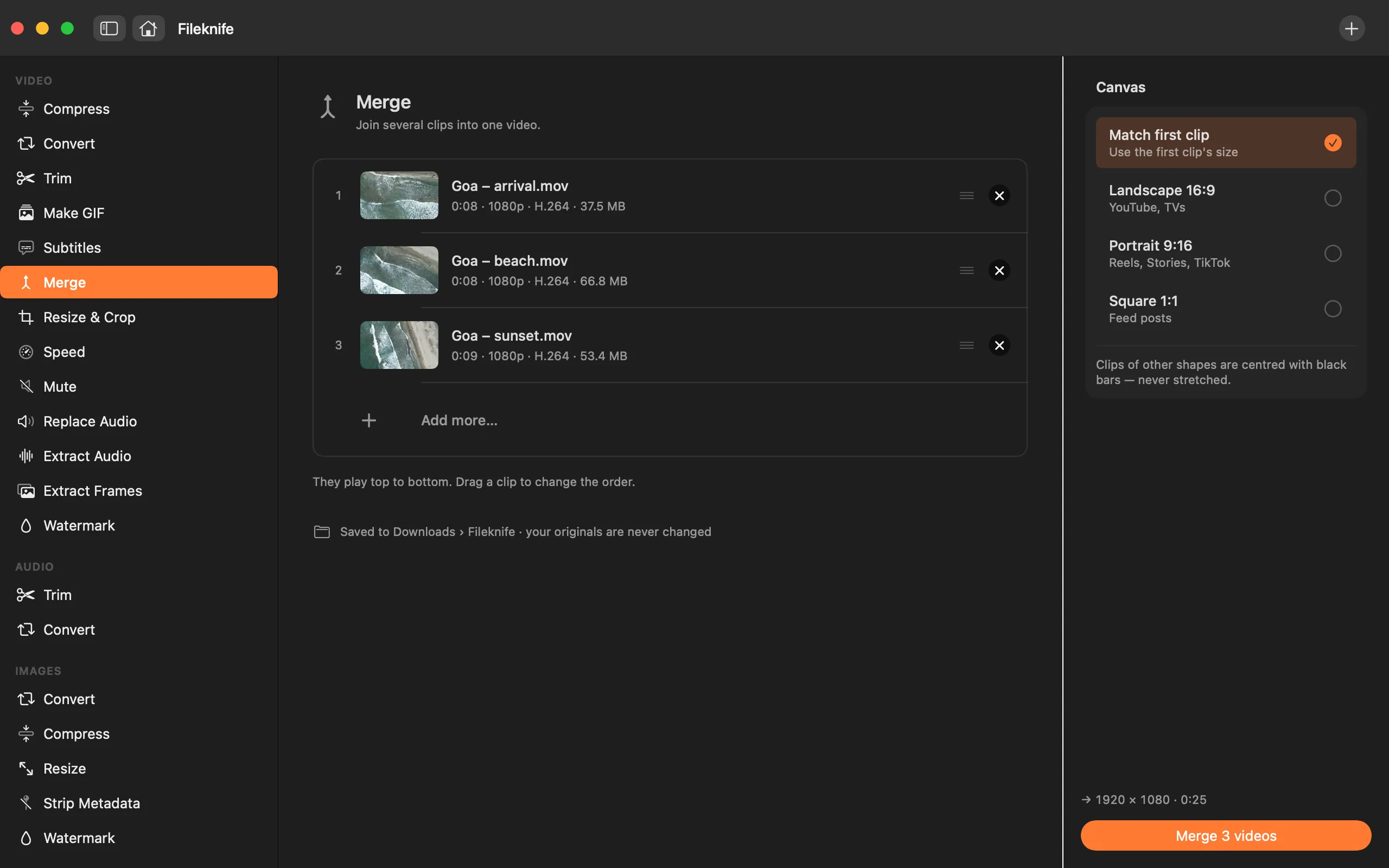
- Drop your clips onto Fileknife and choose Merge.
- Drag the clips into the order you want them to play.
- Choose a canvas: Match first clip, Landscape 16:9, Portrait 9:16 or Square 1:1.
- Press Merge, then use Show in Finder or drag the joined video out.
Why reach for Fileknife
- Drop clips in and drag them into the exact order you want.
- Pick one canvas — match the first clip, or 16:9, 9:16 or 1:1 — and odd-sized clips are letterboxed, never stretched.
- Join a whole set in one pass, not clip by clip.
- Runs on your Mac — no upload and no timeline project to set up.
Presets and options
- Match first clip
- Landscape 16:9
- Portrait 9:16
- Square 1:1
Takes: MP4, MOV, M4V and most common video formats. Gives: MP4.
Honest limits
Clips that don't match the canvas are letterboxed onto it, never stretched out of shape. Merge joins clips end to end; it isn't a timeline editor, so transitions, overlays and per-clip effects aren't part of it.
FAQ
What happens if my clips are different sizes or orientations?
They're fitted onto the canvas you pick and letterboxed if they don't fill it — never stretched. Choosing Match first clip keeps the first clip's shape; the 16:9, 9:16 and 1:1 presets set a fixed frame for all of them.
Can I reorder the clips?
Yes. Drag them into any order before you merge, and that's the order they play in the final file.
Does it re-encode the video?
Merging renders the clips onto one shared canvas, so the result is a new encode. Fileknife keeps it close to the source quality.
Are my videos uploaded?
No. Merging runs entirely on your Mac.
Be the first to know when it ships · No spam · macOS 14 Sonoma or later