Needs Apple Intelligence: a Mac with Apple silicon, macOS 26 or later, with Apple Intelligence turned on.
Summarize a PDF, document or recording on Mac
Summarize a document or recording into the key points.
You've got a long PDF, a report, or an hour-long recording, and you need the gist — the key points, not every paragraph. The usual options are an online summariser that wants your file on its servers, or reading the whole thing yourself. Summarize reads the document (or transcribes the recording) on your Mac and writes a faithful summary with Apple Intelligence, so the content never leaves your computer.
The free way (if there is one)
On an Apple Intelligence Mac, the system Writing Tools can summarize text you've selected for free. There's no built-in way to summarize a whole PDF, a Word document or a recording as a file, or to choose how long the summary is.
If you just need the gist of a passage you can see on screen, the system Writing Tools summarise selected text for free on an Apple Intelligence Mac. Reach for Fileknife when you want a whole document or recording summarised into a file you can keep, at the length you choose, without pasting it anywhere.
With Fileknife
Here's the same job in Fileknife, where it stays on your Mac:
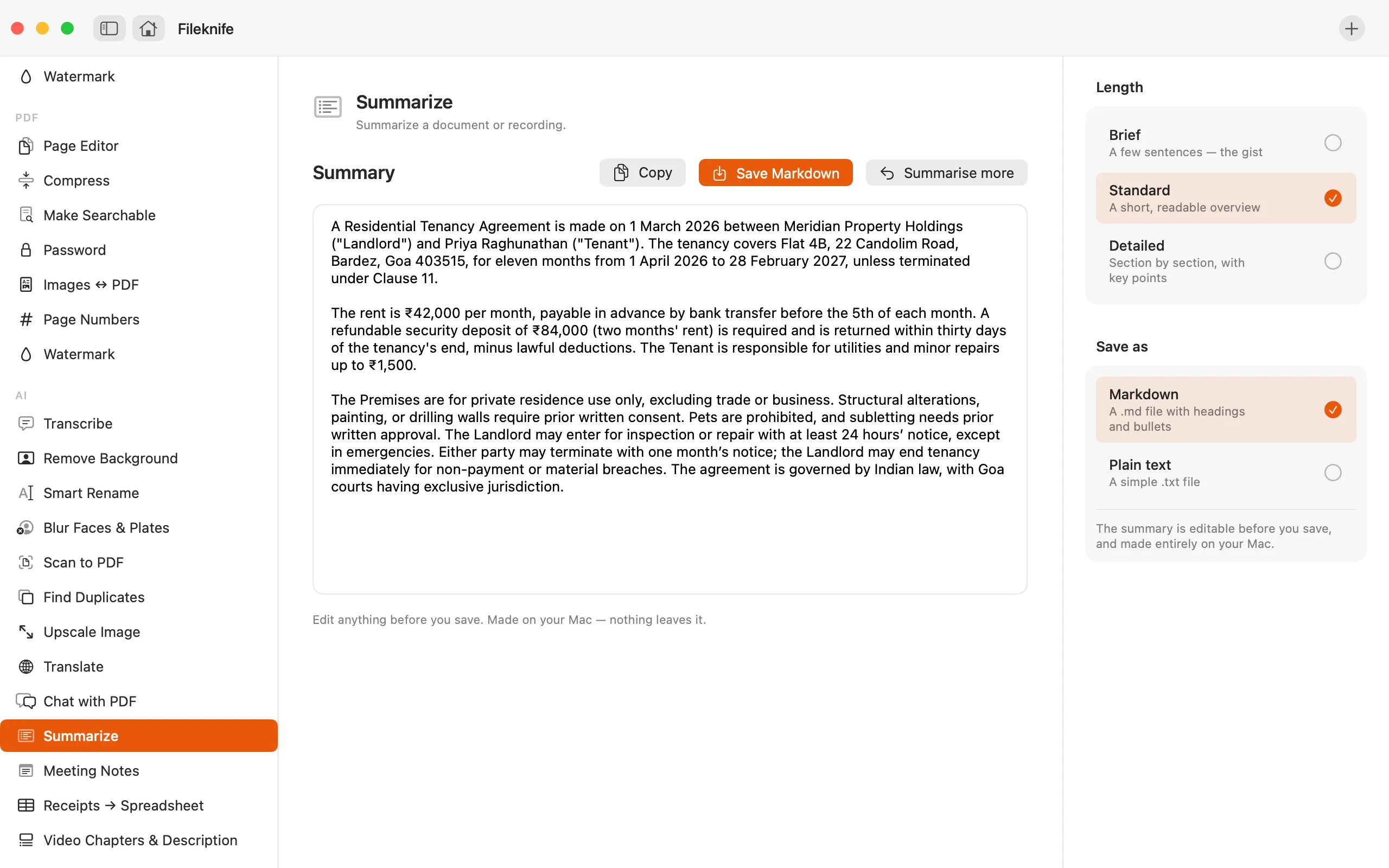
- Drop a PDF, Word doc, text file or recording onto Fileknife and choose Summarize.
- Pick a length: Brief, Standard or Detailed.
- Press Summarize — it reads or transcribes the file on your Mac, then writes the summary.
- Edit the result if you like, then Save as Markdown or plain text.
Why reach for Fileknife
- Summarises a whole document or recording into a file, not just text you've selected.
- Choose how much detail you keep — Brief, Standard or Detailed.
- Long files are summarised in sections and then combined, so length isn't a wall.
- The summary is faithful to the source and editable before you save; it runs on your Mac with nothing uploaded.
Presets and options
- Brief · a few sentences
- Standard · a short overview
- Detailed · sections with key points
- Save as Markdown or plain text
Takes: PDF, Word (.docx) and plain-text documents, plus audio and video recordings. Gives: An editable summary saved as Markdown (.md) or plain text (.txt).
Honest limits
Needs Apple Intelligence — a Mac with Apple silicon on macOS 26 or later, with Apple Intelligence turned on. On a Mac that can't run it, Summarize still appears in Fileknife with a calm line about what it needs; it just won't run there. The summary is faithful to the source but, like any model, can get something wrong — read it and edit before you save. A recording is transcribed on your Mac first, so its summary is only as good as the transcription of the audio. Meeting Notes, Video Chapters and Summarize (for recordings) use Apple's on-device speech recognition. macOS downloads its speech files once, the first time you use it. Your audio never leaves your Mac.
FAQ
Is my document or recording uploaded?
No. Summarize reads the document — or transcribes the recording — on your Mac and summarises it with Apple Intelligence. Nothing is sent anywhere.
Can it summarise a long file?
Yes. A long document or recording is summarised in sections, and those section summaries are then combined into one, so length isn't a wall.
Can the summary be wrong?
It's written to stay faithful to the source and not invent facts, but like any model it can get something wrong. The summary opens in an editor so you can fix it before you save.
What do I need to run it?
A Mac with Apple silicon on macOS 26 or later, with Apple Intelligence turned on. On other Macs the tool still shows up in Fileknife with a note about what it needs.
What can I save it as?
Markdown (.md), with headings and bullets, or plain text (.txt).
Be the first to know when it ships · No spam · macOS 14 Sonoma or later