Translate uses Apple's on-device language packs. macOS downloads each one once, the first time you use it.
Translate a document or subtitles on Mac
Translate documents and subtitles, on your Mac.
A contract in a language you don't read, subtitles that need another language, a document to pass to someone abroad — translating it usually means pasting chunks into a website or paying a service that wants your file on its servers. Fileknife uses Apple's on-device translation, new in macOS 15, to translate a whole document or subtitle file on your Mac, so the text stays with you.
The free way (if there is one)
macOS 15's built-in Translate app and the system Translate menu handle selected text and some documents for free. There's no built-in way to translate a whole subtitle file, or to batch a set of documents into saved translated copies.
macOS 15 has a system Translate app and a Translate option in the menu that handle selected text and some documents for free — great for a quick passage. Fileknife is for translating a whole file at once — a full PDF, a Word document, or a subtitle track — and saving the result as a file, without copy-pasting section by section.
With Fileknife
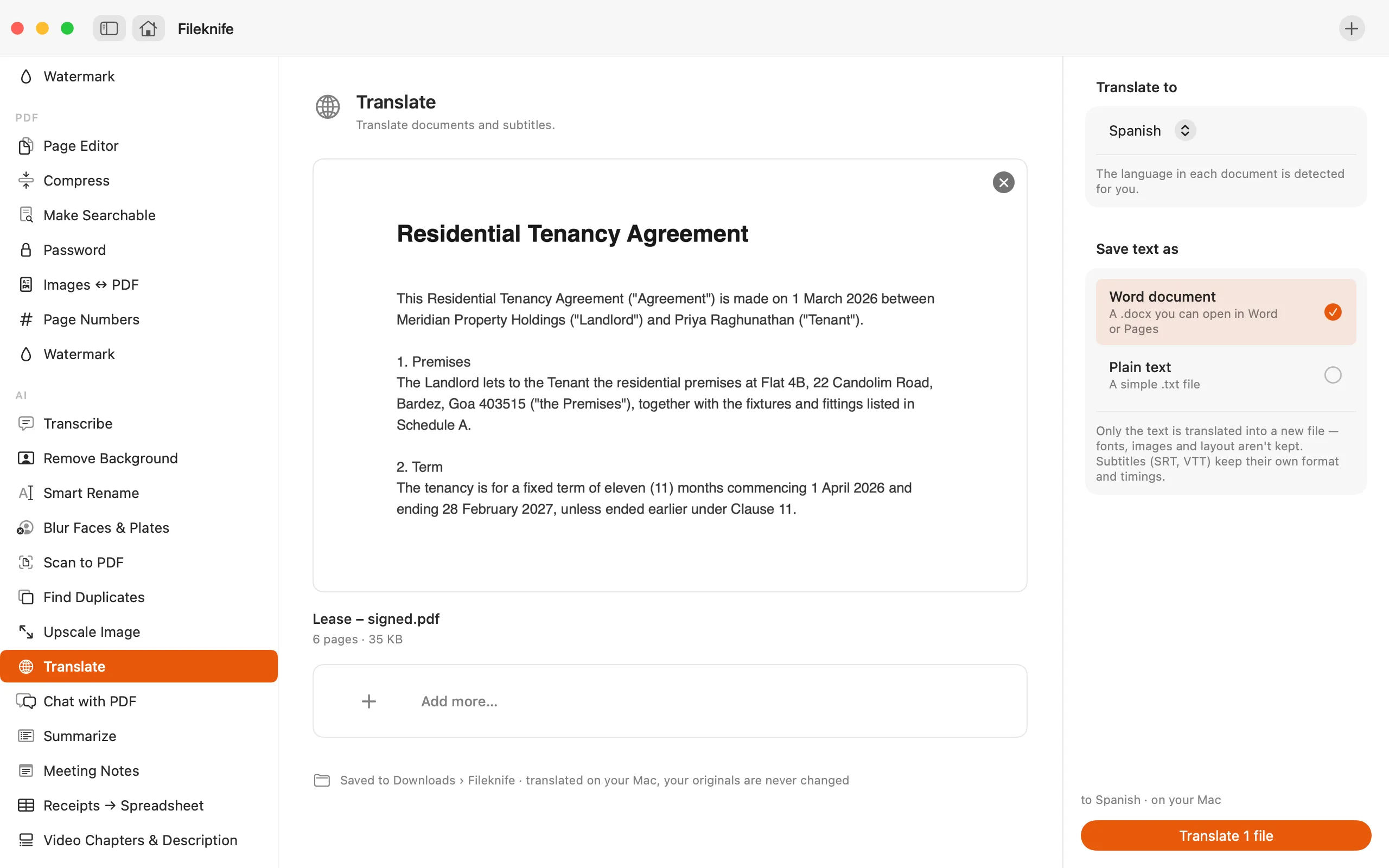
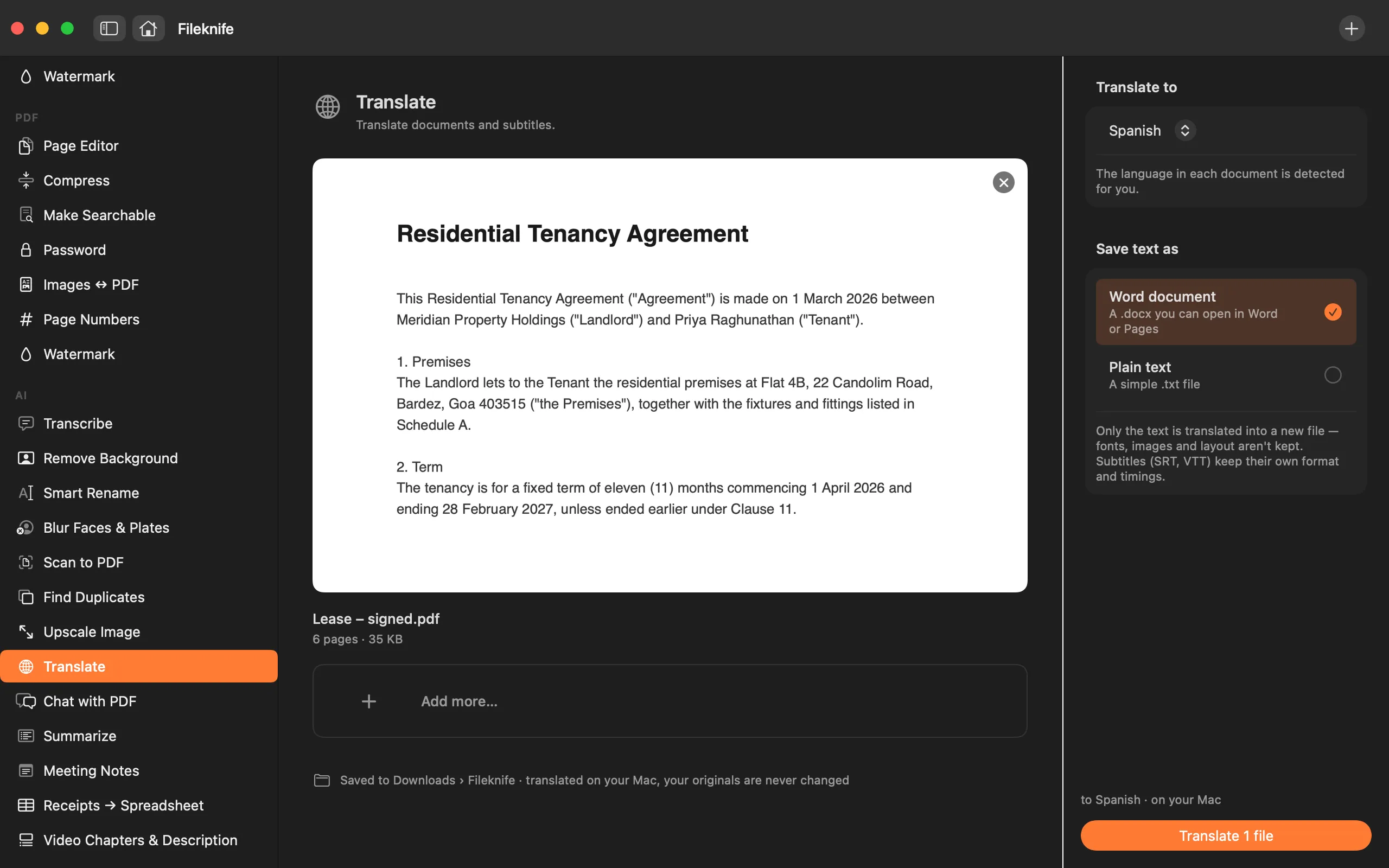
Here's the same job in Fileknife, where it stays on your Mac:
- Drop a PDF, Word document, text file or subtitle file onto Fileknife and choose Translate.
- Pick the target language — the source is detected automatically.
- For text documents, choose the output: a Word (.docx) file or plain text (.txt).
- Press Translate, then use Show in Finder or drag the translated file out.
Why reach for Fileknife
- Translates a whole document or subtitle file at once, not a passage at a time.
- Keeps subtitles in their own format — SRT stays SRT, VTT stays VTT — so the timings are preserved.
- The source language is detected automatically; you just pick the target from 20 languages.
- Runs on your Mac with Apple's on-device translation, so your documents aren't uploaded.
Presets and options
- 20 target languages
- Word (.docx) or plain text
- Subtitles keep SRT / VTT
Takes: PDF, Word (.docx), RTF and plain-text documents, and SRT or VTT subtitle files. Gives: A translated Word (.docx) or text (.txt) file for documents; a translated SRT or VTT for subtitles.
Honest limits
Translate needs macOS 15 Sequoia or later. The translated document is a readable text file (.docx or .txt), not a layout-preserving copy of the original PDF — the words are translated, the original formatting isn't rebuilt. The first time you use a language, macOS downloads that language once; after that it works offline. Machine translation isn't a substitute for a professional translator for anything legal or critical.
FAQ
Does translating upload my document?
No. Fileknife uses Apple's on-device translation framework, so the text is translated on your Mac. The first time you use a given language, macOS downloads that language pack once; after that it works offline.
Which languages can it translate to?
Around 20, including Spanish, French, German, Italian, Portuguese, Dutch, Polish, Russian, Ukrainian, Arabic, Turkish, Hindi, Chinese (Simplified and Traditional), Japanese, Korean, Thai, Indonesian, Vietnamese and English. The source language is detected automatically.
Will the translated PDF keep its layout?
No. The translation is saved as a readable Word (.docx) or plain-text file — the words are translated but the original PDF's layout isn't rebuilt. Subtitles are the exception: an SRT stays an SRT and a VTT stays a VTT, with the timings intact.
Why does it need macOS 15?
It's built on Apple's Translation framework for documents, which is new in macOS 15 Sequoia. On earlier macOS the tool isn't available.
Be the first to know when it ships · No spam · macOS 14 Sonoma or later