Convert images to a PDF, and back, on Mac
Convert images into a PDF, or a PDF's pages into images.
This goes both ways. Sometimes you need a stack of photos — receipts, scanned pages, screenshots — gathered into a single PDF to send as one document. Other times you need the opposite: a PDF turned into image files, one per page, for a slide or a website. Images ↔ PDF handles both: combine images into a PDF, or export a PDF's pages as PNG or JPEG.
The free way (if there is one)
Preview can do both for free: print or export images to a PDF, and export a PDF's pages as images (File → Export). It's capable for a handful; Fileknife adds a clear page-size choice, image format and DPI, and an easier batch.
Preview can print images to a PDF, and export PDF pages as images, for free — and it's fine for a few. Fileknife is for doing it in one step with a chosen page size, image format and resolution, especially across many files.
With Fileknife
Here's the same job in Fileknife, where it stays on your Mac:
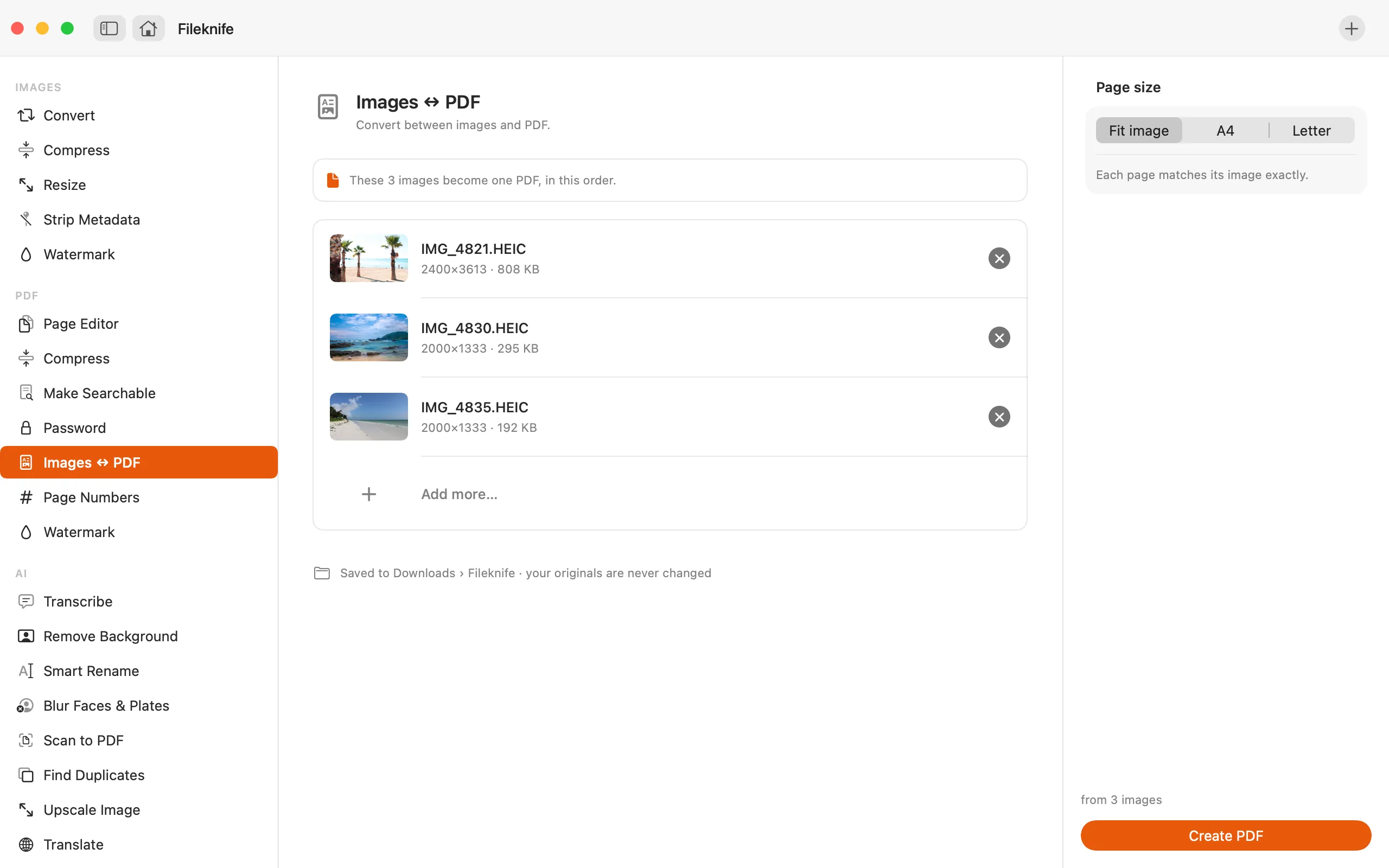
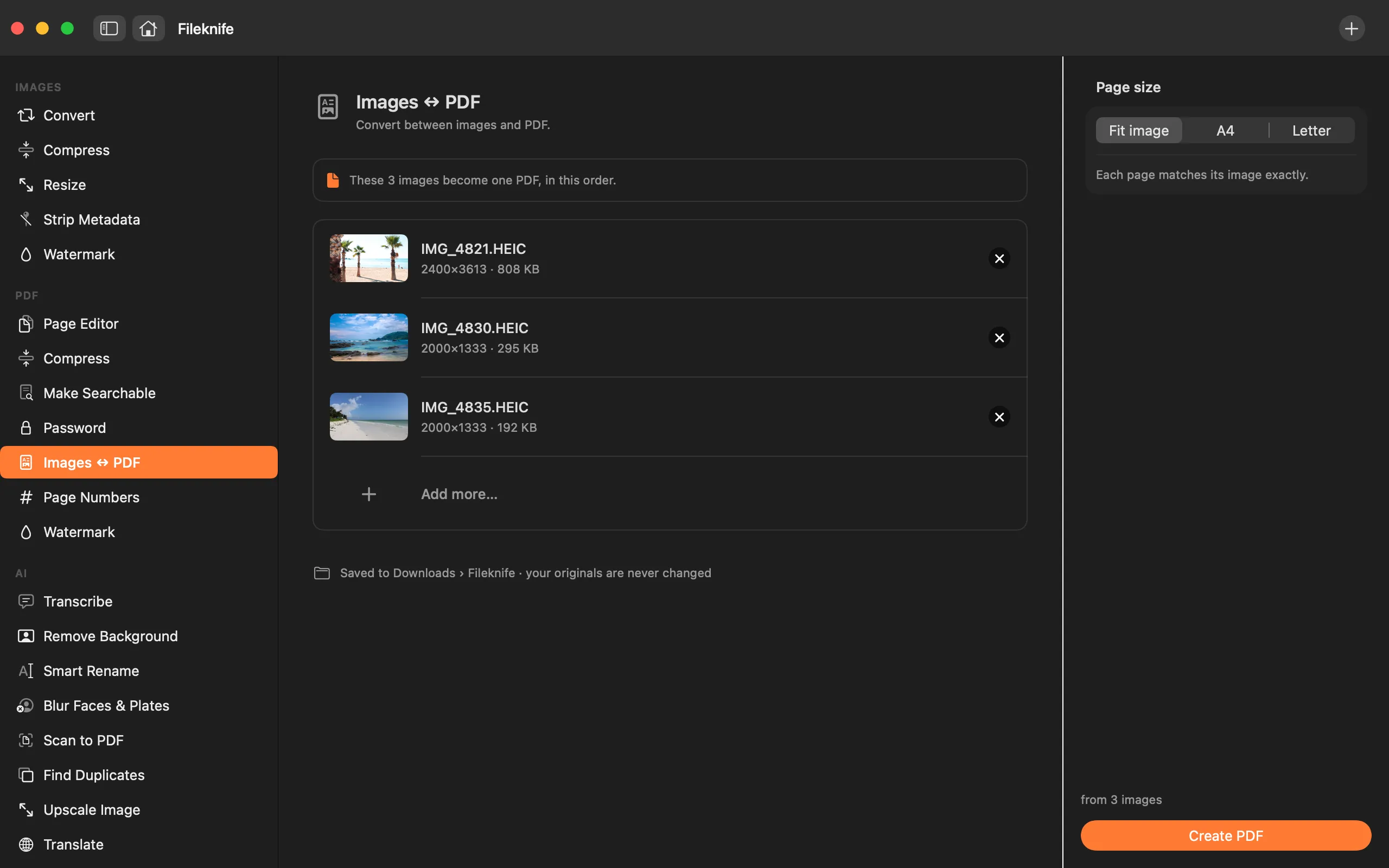
- Drop your images (or a PDF) onto Fileknife and choose Images ↔ PDF.
- For images → PDF, pick the page size: Fit image, A4 or Letter.
- For PDF → images, pick the format (PNG or JPEG) and resolution.
- Press the button, then use Show in Finder or drag the result out.
Why reach for Fileknife
- Both directions: images → one PDF, or a PDF → a folder of page images.
- Choose the page size — fit each image, or A4 / Letter with a neat margin.
- Export page images as PNG or JPEG at screen, good or print resolution.
- Runs on your Mac — nothing is uploaded.
Presets and options
- Images → PDF (Fit image / A4 / Letter)
- PDF → images (PNG / JPEG, 72 / 150 / 300 dpi)
Takes: Images (JPG, PNG, HEIC and more) to make a PDF, or a PDF to export as images. Gives: One PDF, or a folder of page images (PNG or JPEG).
Honest limits
Making a PDF lays out one image per page; it combines images into a document rather than editing a page's layout. Exporting pages to images rasterises them at the resolution you choose, so text becomes part of the picture — use Make Searchable if you need selectable text in a PDF.
FAQ
How do I combine several photos into one PDF?
Drop the photos in, choose a page size (fit the image, or A4 / Letter), and press the button — you get a single PDF with one image per page.
Can I turn a PDF into image files?
Yes. Drop a PDF in and export its pages as PNG or JPEG at screen, good or print resolution.
What page size should I choose?
Fit image makes each page match its image exactly (no borders). A4 or Letter fits each image on a standard page with a small margin, which is better for printing.
Is anything uploaded?
No. The conversion runs on your Mac.
Be the first to know when it ships · No spam · macOS 14 Sonoma or later