Scan a document to PDF on Mac
Turn photos of documents into a clean, straightened PDF.
Half the time a "scan" is really just a photo you took on your phone: a contract on a desk, a receipt, a form, snapped at a slight angle with the tabletop around it. Scanning to PDF turns those photos into a proper document — the page straightened, the edges cropped, the colours cleaned up, every page bound into one PDF. The phone scanner apps do this well but push you toward accounts and subscriptions; the photos are usually already sitting on your Mac.
The free way (if there is one)
Notes and Continuity Camera can scan a document straight to PDF for free using your iPhone, and they do it well. There's no built-in way to turn photos already on your Mac into a straightened, cropped document PDF.
If your iPhone is to hand, Notes and Continuity Camera scan a document straight to PDF for free, and they're excellent. Fileknife is for the photos you already have on your Mac — turning a folder of document snaps into a straightened, toned PDF without reaching for your phone again.
With Fileknife
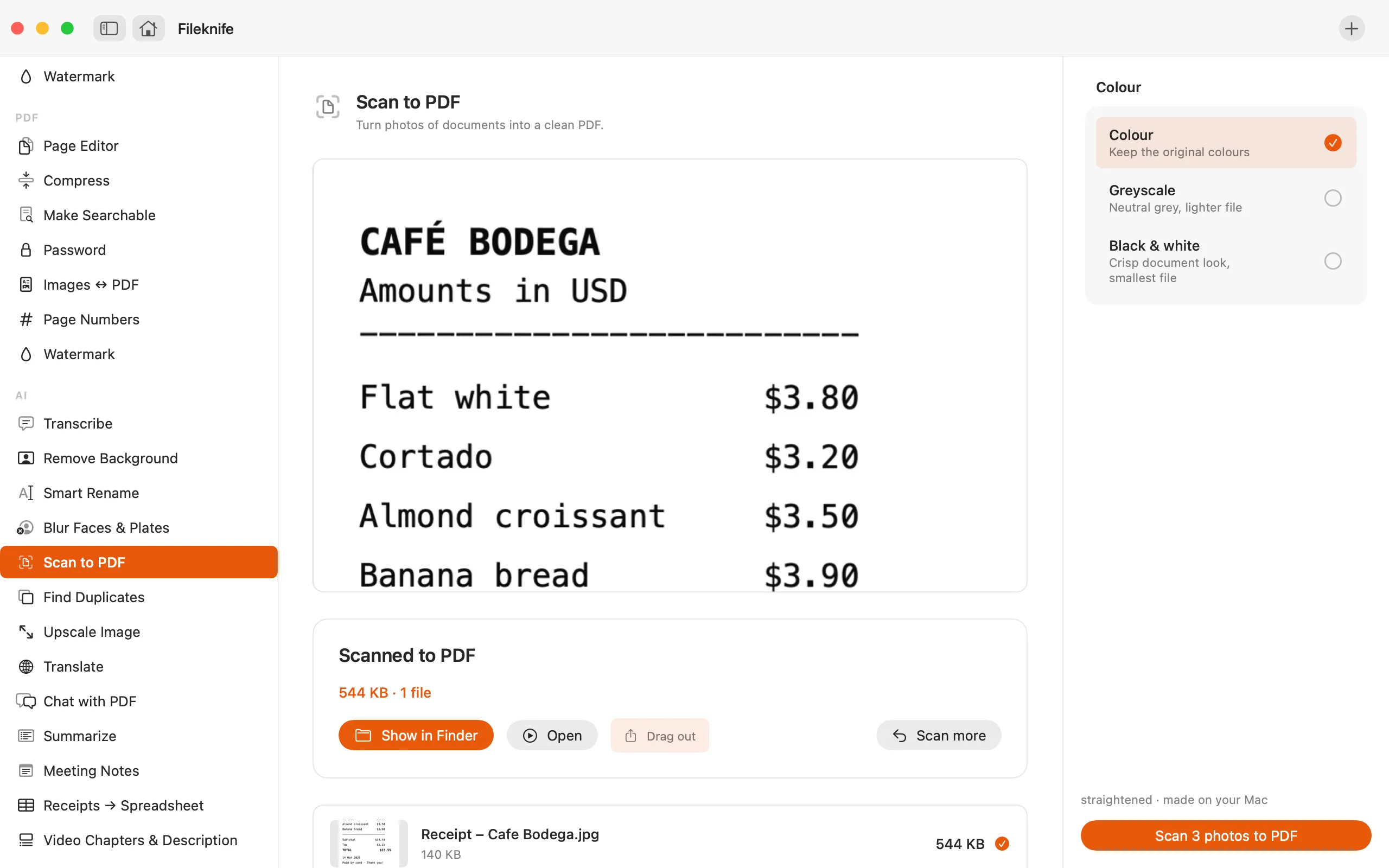
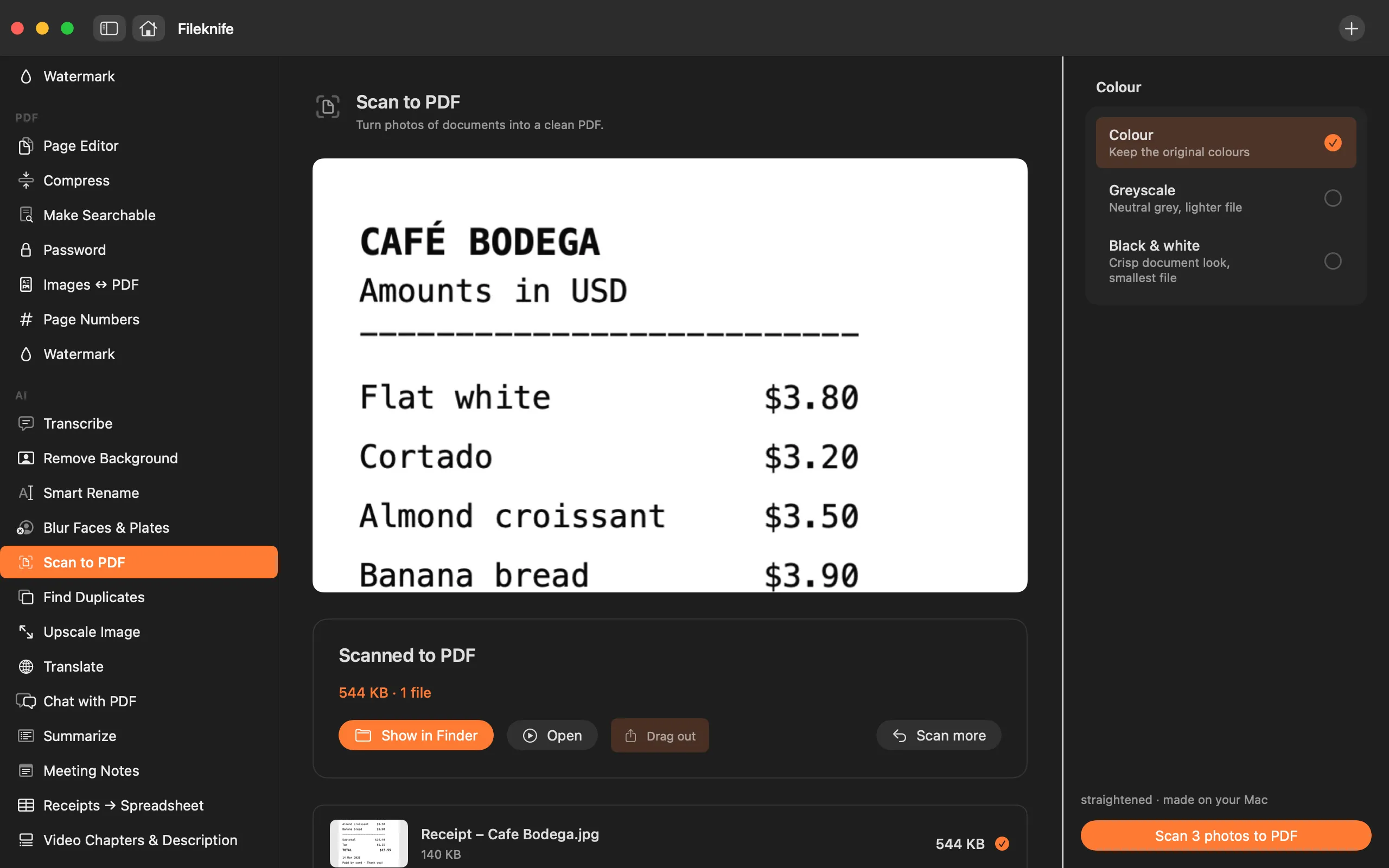
Here's the same job in Fileknife, where it stays on your Mac:
- Drop your document photos onto Fileknife and choose Scan to PDF.
- Pick the toning: Colour, Greyscale or Black & white.
- Check the page order (drag to reorder if needed).
- Press Scan — you get one clean PDF.
Why reach for Fileknife
- Works from photos already on your Mac — no need to re-scan with your phone.
- Finds the page edges and straightens the perspective automatically.
- Tone each page in colour, greyscale or crisp black & white for a smaller file.
- Combines several pages into one PDF, and runs on your Mac.
Presets and options
- Colour
- Greyscale
- Black & white
Takes: Photos — HEIC, JPG, PNG and other common image formats. Gives: One PDF, one page per photo.
Honest limits
Fileknife finds and straightens the page edges automatically; a photo where no clear page edge is found keeps its full frame rather than being dropped. Very dark or motion-blurred photos scan less cleanly. To make the result searchable, run it through Make Searchable afterwards.
FAQ
Do I need my iPhone for this?
No. Notes + Continuity Camera is great when your phone is handy, but Scan to PDF works from photos already on your Mac — no re-scanning needed.
Does it straighten a photo taken at an angle?
Yes. It detects the document's edges and corrects the perspective so the page looks flat and square, then crops away the surroundings.
Can I make the PDF searchable too?
Scan to PDF produces the document; run that PDF through Make Searchable to add a text layer so you can search and copy it.
Is anything uploaded?
No. The whole scan runs on your Mac.
Be the first to know when it ships · No spam · macOS 14 Sonoma or later