Remove GPS and EXIF data from a photo on Mac
Remove GPS location and other EXIF data from photos.
Every photo carries hidden metadata: where it was taken, when, on what camera, with what settings. That's useful in your own library and a problem the moment you post a picture publicly — the GPS tag can give away your home or a child's school. Stripping metadata removes that information from the file so the picture goes out clean, with only the image itself.
The free way (if there is one)
macOS has no simple built-in way to strip a photo's GPS or EXIF data. People often screenshot the image to drop the metadata, but that re-encodes it and loses quality — and doesn't reliably clear everything.
macOS has no one-click way to strip a photo's location or EXIF, so the usual advice ("take a screenshot of it") loses quality and still isn't reliable. Fileknife removes just the location, or everything, and keeps the picture intact.
With Fileknife
Here's the same job in Fileknife, where it stays on your Mac:
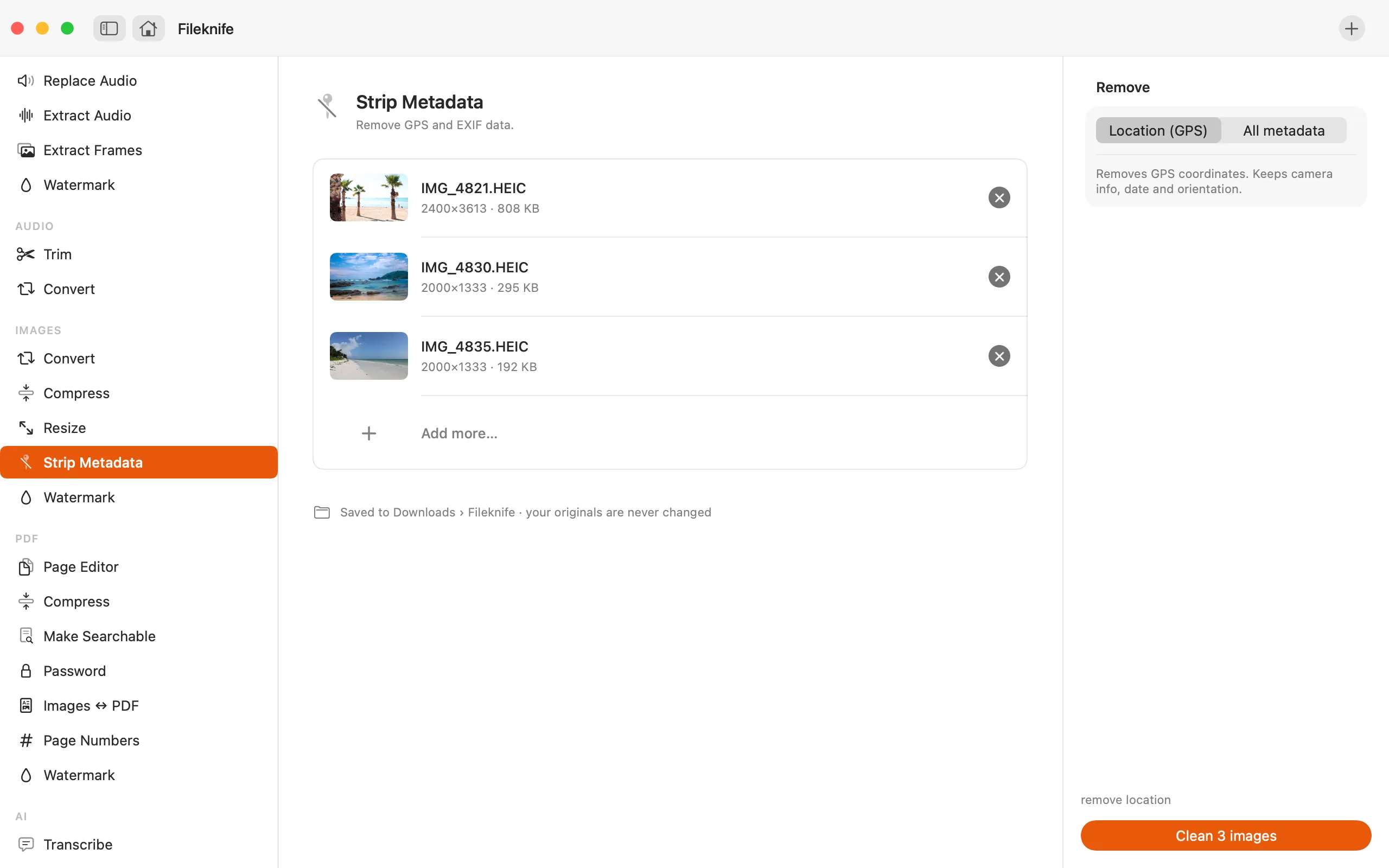
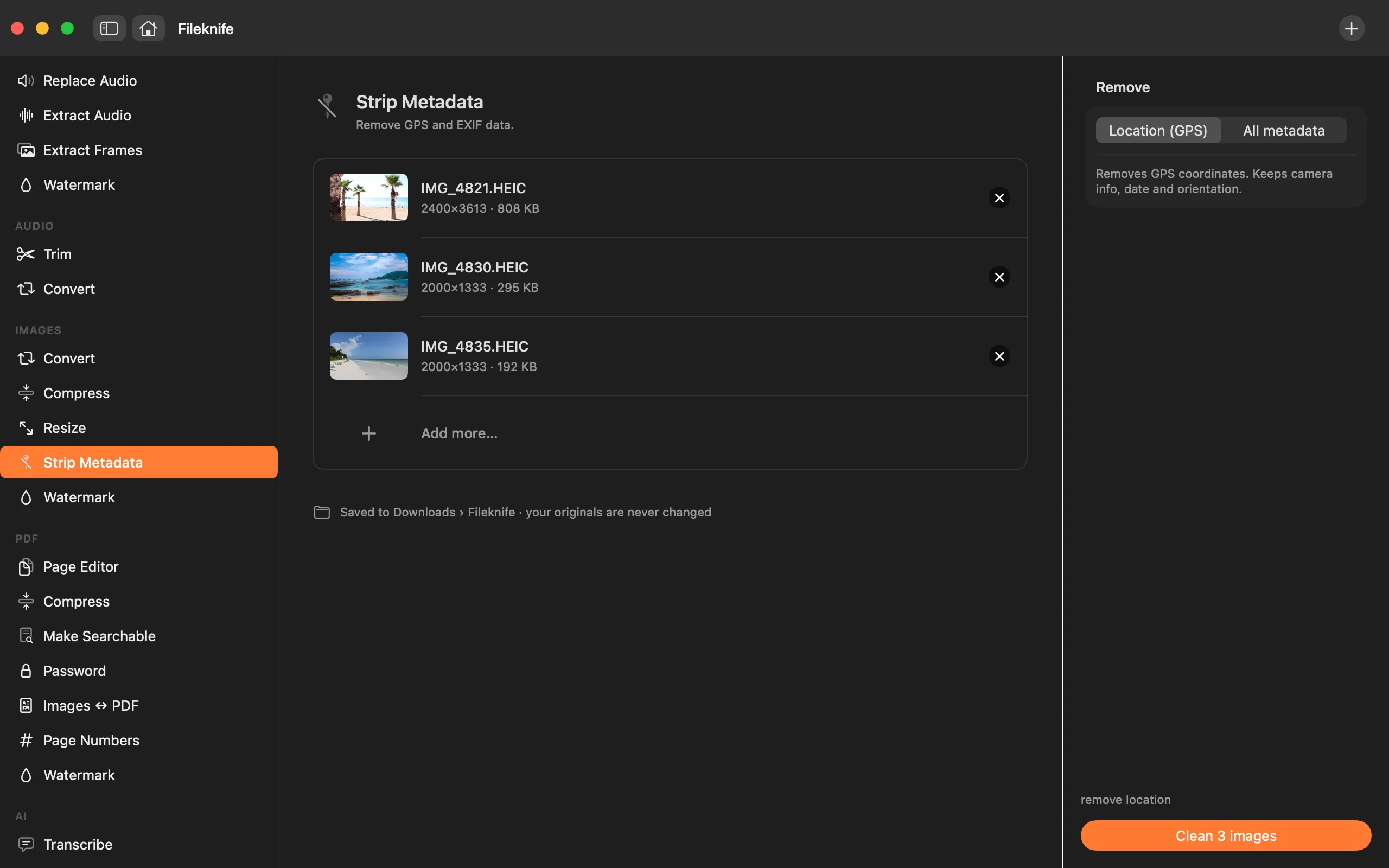
- Drop your photos onto Fileknife and choose Strip Metadata.
- Choose Location (GPS) to drop only the location, or All metadata to clear everything.
- Press the button.
- Use Show in Finder or drag the cleaned photos out.
Why reach for Fileknife
- Remove just the GPS location, or all metadata, in one choice.
- The picture and its colour profile are kept — only the hidden data goes.
- Clean a whole batch of photos in one pass.
- Runs on your Mac — the photos (and their locations) are never uploaded.
Presets and options
- Location (GPS)
- All metadata
Takes: JPG, PNG, HEIC, WebP and other common image formats. Gives: Clean copies in the same format (picture and colours kept).
Honest limits
Location-only removes the GPS tag and keeps camera, date and orientation; All metadata removes everything but the picture and its colour profile. Fileknife writes cleaned copies, so your originals (with their metadata) stay as they are.
FAQ
Does removing GPS change how the photo looks?
No. Only the hidden metadata is removed — the picture and its colour profile are untouched.
Can I keep the camera and date but drop just the location?
Yes. Choose Location (GPS) to remove only the coordinates and keep camera info, date and orientation.
Does it change my original files?
No. Fileknife writes cleaned copies and leaves your originals, with their metadata, in place.
Is anything uploaded?
No — which is the point. Stripping metadata runs entirely on your Mac.
Be the first to know when it ships · No spam · macOS 14 Sonoma or later