Trim a video on Mac
Keep the part of the clip you want and drop the rest.
Most clips have dead weight at the ends — ten seconds of fumbling with the camera before the good bit, a tail of nothing after it. Trimming just means cutting a video down to the section you actually want to keep, and saving that as a new file. It's one of those jobs that should take five seconds and, on the wrong tool, somehow turns into a full re-export.
The free way (if there is one)
QuickTime Player can trim a clip for free (Edit → Trim) and it's genuinely good for a quick one-off. It re-encodes on export, and it trims one file at a time.
For a single, casual trim, QuickTime Player (Edit → Trim) is free and perfectly good — use it. Fileknife earns its place when you want exact timecodes typed in, when you'd rather keep the original quality without a full re-encode, or when you're trimming a stack of clips.
With Fileknife
Here's the same job in Fileknife, where it stays on your Mac:
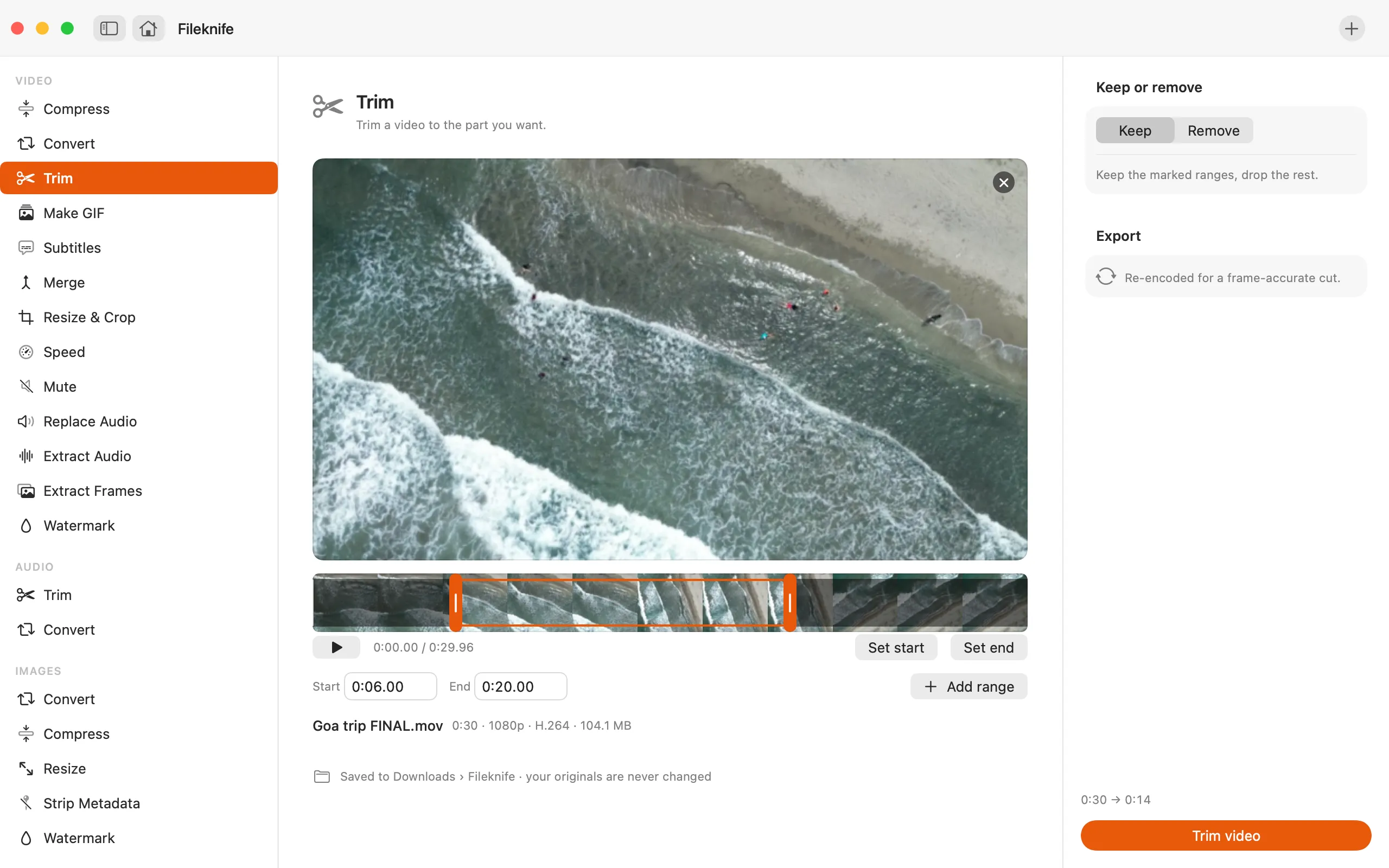
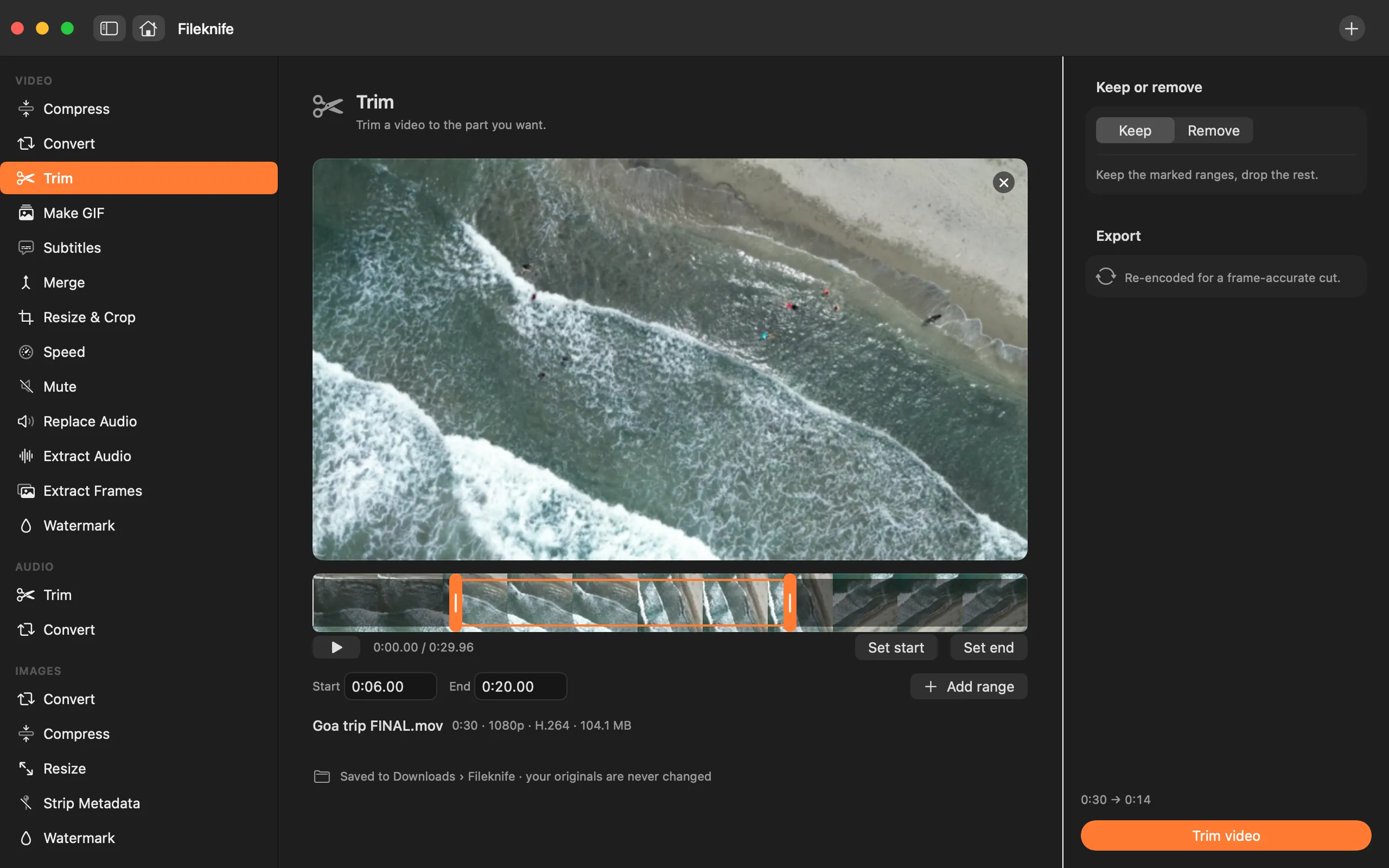
- Drop the video onto Fileknife, or pick Trim from the Video section.
- Drag the start and end handles, or type exact timecodes.
- Press Trim.
- Use Show in Finder or drag the trimmed clip straight out.
Why reach for Fileknife
- Trim without re-encoding where the format allows, so the saved clip keeps the original quality and finishes quickly.
- Set exact start and end times by typing them, not just by dragging.
- Your original file is never changed — Fileknife always writes a new one.
Presets and options
- Keep selection
- Custom start and end
Takes: MP4, MOV, M4V and most common video formats. Gives: Same format as the input where possible.
Honest limits
Frame-exact cuts on some formats require a re-encode, which takes a little longer than a direct copy. Fileknife trims a single section cleanly; it isn't a multi-clip timeline editor, so joining clips or layering effects isn't what it's for.
FAQ
Does trimming reduce the quality?
When the format allows a direct cut, no — the kept section is copied as-is. When an exact-frame cut needs a re-encode, the quality stays as close to the original as possible.
Can I trim without changing the original file?
Yes. Fileknife always saves a new file and never edits your original.
Can I cut a bit out of the middle?
Trim keeps one continuous section from a start point to an end point. To cut a chunk out of the middle, trim the two halves you want and join them with the Merge tool.
Which video formats can I trim?
The common ones — MP4, MOV, M4V and most others you'll have from a phone, camera or screen recording. The trimmed clip is saved in the same format as the original wherever possible.
Be the first to know when it ships · No spam · macOS 14 Sonoma or later