Needs Apple Intelligence: a Mac with Apple silicon, macOS 26 or later, with Apple Intelligence turned on.
Make YouTube chapters and a description on Mac
Get YouTube chapters, a description, titles and tags from a video.
A good YouTube video still needs chapters, a description, a title and tags before it's ready to publish — the part nobody enjoys. Online tools that generate them want your video, or at least its transcript, uploaded. Video Chapters & Description transcribes the video on your Mac and drafts all of that with Apple Intelligence, timestamps and all, so nothing is uploaded.
The free way (if there is one)
There isn't a built-in way to do this on macOS today — you'd normally reach for a web tool that uploads your file, or a paid app.
macOS can't generate chapters or a description from a video. The usual route is an online generator you paste a transcript into, or upload the whole video to. Fileknife drafts them from the video on your Mac instead.
With Fileknife
Here's the same job in Fileknife, where it stays on your Mac:
- Drop a video onto Fileknife and choose Video Chapters & Description.
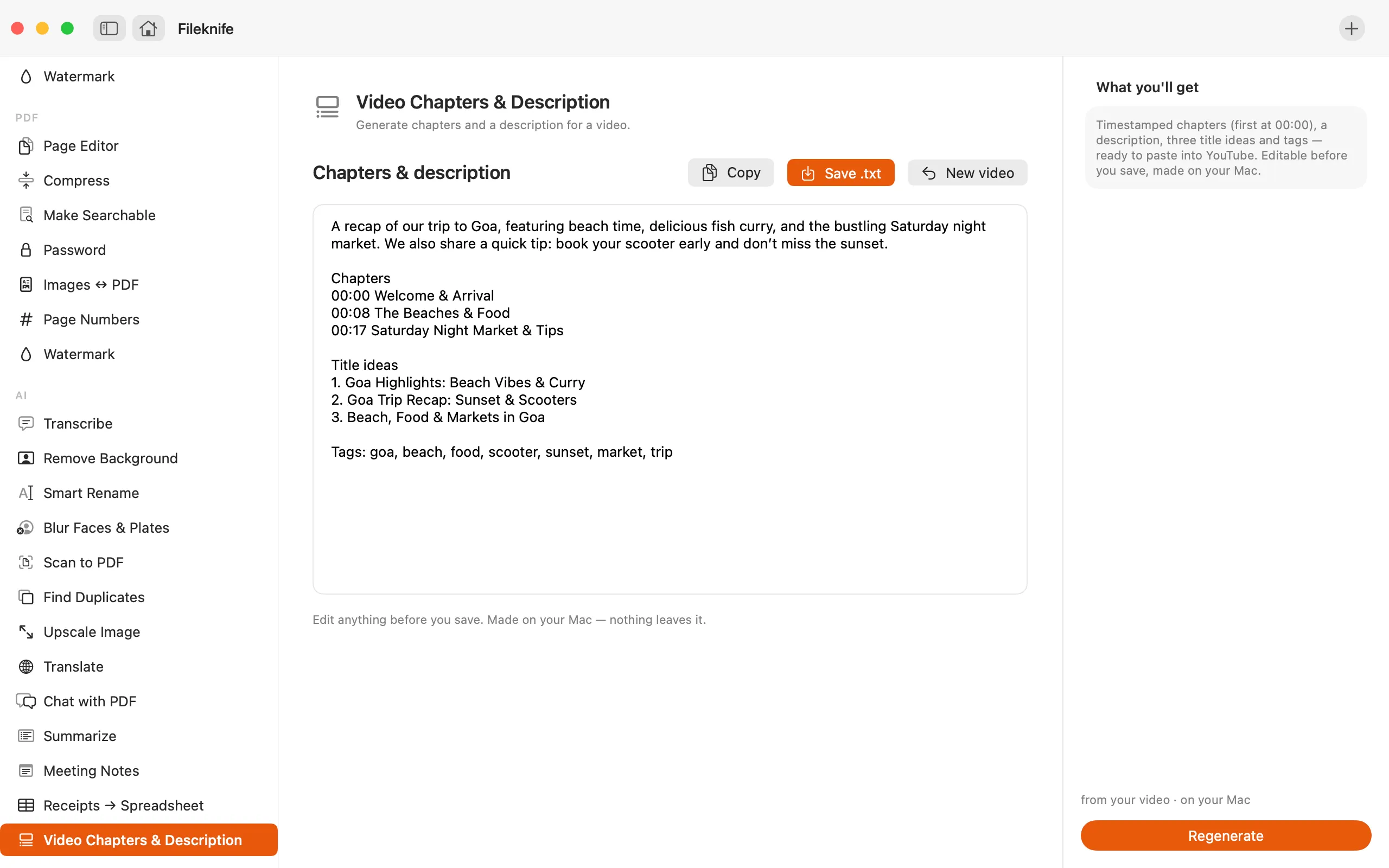
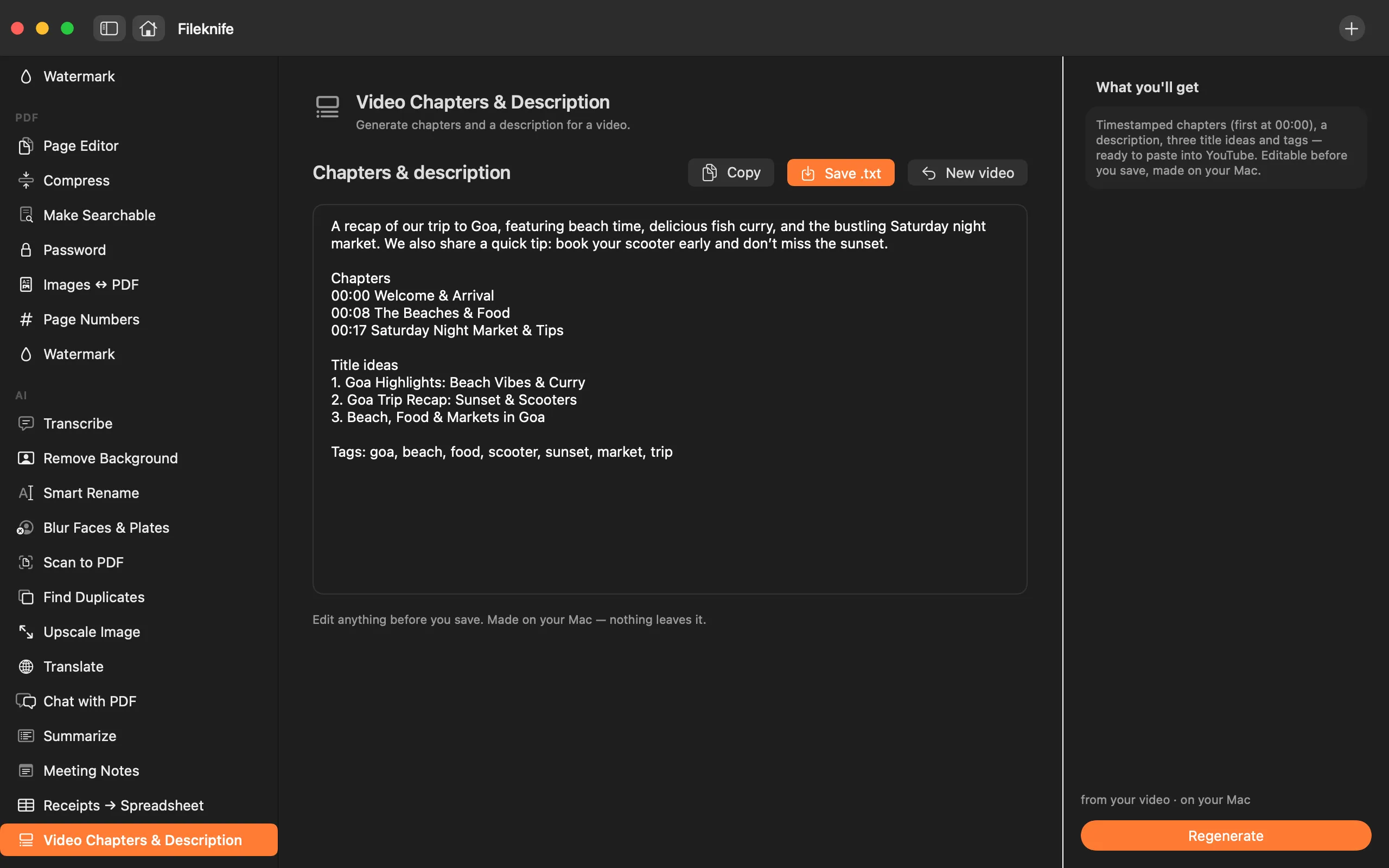
- Press Make chapters — Fileknife transcribes the video on your Mac, then drafts the chapters and description.
- Check the timestamped chapters, description, title ideas and tags, and edit as needed.
- Save the text, then paste it into YouTube.
Why reach for Fileknife
- You get timestamped chapters (the first at 00:00), a description, three title ideas and tags — ready to paste into YouTube.
- Chapter times are taken from the video's own transcript, so they land on real moments.
- The video is transcribed and the text drafted on your Mac; nothing is uploaded.
- Everything is editable before you save it as a text file.
Presets and options
- Timestamped chapters (first at 00:00)
- Description, three title ideas and tags
- Save as a text file
Takes: MP4, MOV, M4V, MKV and WebM video. Gives: An editable text file with chapters, a description, title ideas and tags.
Honest limits
Needs Apple Intelligence — a Mac with Apple silicon on macOS 26 or later, with Apple Intelligence turned on. On a Mac that can't run it, the tool still appears with a calm note about what it needs, and won't run there. Chapters come from the video's spoken transcript, so a video with no speech has nothing to work from. The draft can contain mistakes — edit the chapters, description, titles and tags before you save. Meeting Notes, Video Chapters and Summarize (for recordings) use Apple's on-device speech recognition. macOS downloads its speech files once, the first time you use it. Your audio never leaves your Mac.
FAQ
Is my video uploaded?
No. The video is transcribed on your Mac and the chapters and description are drafted with Apple Intelligence. Nothing is uploaded.
Where do the chapter times come from?
From the video's own transcript, so they land on real moments in the audio. The first chapter is always set to 00:00, the way YouTube expects.
What exactly do I get?
Timestamped chapters, a short description, three title ideas and a set of tags — all as editable text you can paste straight into YouTube.
What if my video has no speech?
Chapters are built from what's spoken, so a video with no speech has nothing to work from. For a talking video — a tutorial, a talk or a vlog — it has plenty.
What do I need to run it?
A Mac with Apple silicon on macOS 26 or later, with Apple Intelligence turned on. On other Macs the tool still appears with a note about what it needs.
Be the first to know when it ships · No spam · macOS 14 Sonoma or later